Desertcart purchases this item on your behalf and handles shipping, customs, and support to QATAR.
🎨 Elevate your art game with precision, clarity, and style — don’t just create, captivate!
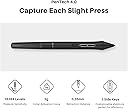
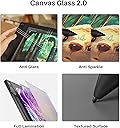
The HUION KAMVAS 16 (Gen 3) is a professional-grade 15.8-inch drawing tablet featuring a 2.5K QHD resolution display with 186 PPI, 16,384 levels of pen pressure sensitivity via PenTech 4.0, and ±60° tilt support. Its nano-etched anti-glare glass offers a natural paper-like feel, while dual customizable dials and shortcut keys streamline creative workflows. Compatible with Windows, Mac, Android, and Linux, it’s designed for artists seeking precision, vibrant color accuracy (99% sRGB, 90% Adobe RGB), and reliable connectivity in a sleek, durable package.


| ASIN | B09FDZG55G |
| Active Surface Area | 54.2 square inches |
| Additional Features | 16K Pen Pressure, 2.5K QHD Resolution, Canvas Glass 2.0, Dual Dials, PenTech 4.0 |
| Best Sellers Rank | #28 in Computer Graphics Tablets |
| Brand | HUION |
| Built-In Media | Cleaning Cloth, Full-featured USB-C cable, 3-in-1 Cable, USB Extension Cable, USB Power cable, Power Adapter, Glove, PW600L Pen, Pen Holder, Pen Nibs x 10, Quick Start Guide, Stand |
| Color | Silvery |
| Compatible Devices | Desktop, Laptop, Smartphone, Tablet |
| Connectivity Technology | 3-in-1 HDMI, Full-featured USB-C |
| Customer Reviews | 4.5 out of 5 stars 4,410 Reviews |
| Display Type | LCD |
| Item Dimensions L x W | 16.58"L x 9.32"W |
| Item Highlight | PenTech 4.0, 15.8 inch, Canvas Glass 2.0, Full Laminated, Anti-Sparkle Glass, 99% sRGB, Dual Dials, Work with Mac/PC/Android |
| Item Type Name | Computer Graphics Tablets |
| Item Weight | 2.7 pounds |
| Manufacturer | ShenZhen Huion Animation Technology Co., LTD |
| Mfr Part Number | GT1602 |
| Model Name | Kamvas 16 (Gen 3) |
| Model Number | GS1563 |
| Native Resolution | 2560x1440 |
| Number of Items | 1 |
| Number of Packs | 1 |
| Operating System | Android(USB3.1 DP1.2 or later), Linux OS(Ubuntu 20.04 LTS), Mac OS 10.12 or later, Windows 10 or later Operating System Android(USB3.1 DP1.2 or later), Linux OS(Ubuntu 20.04 LTS), Mac OS 10.12 or later, Windows 10 or later See more |
| Pressure Sensitivity | 16384 levels |
| Screen Size | 15.8 inches |
| Special Feature | 16K Pen Pressure, 2.5K QHD Resolution, Canvas Glass 2.0, Dual Dials, PenTech 4.0 |
| Specific Uses For Product | Animation, Drawing, Painting |
| Target Audience | Artist, Student, Teacher |
| Unit Count | 1 Count |
| Warranty Description | 1 year warranty |
A**E
Better than the Wacom One [no shade]
Bought this on October 2024, after my Wacome One became unusable after its charger port fused into one with itself nearly 1 year after purchase. I was worried that after purchasing the Kamvas Pro 16 I would have the same issue with the charger port. But alas after nearly 2 years of use, this has not occurred. So yes, this is a good purchase for your money if your looking for a decent drawing tablet. Sturdy with respectable care. The pen doesnt need charging. Only needs calibration once in a while through the huion program. Setting up the program and getting the screen to sync can be difficult initially but as long as you use that somewhat questionable techy experience you will figure it out my friend. Compared to the Wacome One, the Huion Kamvas Pro 16 has bigger screen. It has more to offer yet has a familiar feel and in addition it was more durable.
E**E
I'm really enjoying using my screen tablet
As a first time drawing screen tablet used, I would recommend this tablet, it's affordable and gets the jobs done. This has my first impressions of the tablet, setup and feelings about it after two weeks of use. It is also my first time using a tablet with a screen, but I have used multiple drawing tablets with no screen. When I open the box, it was easy to open and came with some instruction like where to download the diver and some basic stuff to know about the tablet The box also had sticker to identify the shortcut buttons, thought I found the sticker to be too large to put on the shortcut buttons and square while the buttons are round. It looks like if I put them on, they would stick off the buttons and make it easy to get dust on them and be easy to accidentally peel off. I think it would be better if the stickers were round and smaller. It comes with adjustable power head that can convert to different power grids. Since I’m in the US I got the US version. It’s easy to remove and replace with the conversion for when you travel. It also came with an adjustable stand for the tablet. When I first tried to open it, it was very hard. I felt like I might break it if I tried to open it. It did become easier after repeated tries. I’d would recommend you get something thin to help you pry it open the first couple times. I think it would help if the tab that close the stand was not so tight thought. To me the stand has a good range of angles. The six positions allow you to adjust it at the viewing angel that is most comfortable to you and your wrist position. For me the lowest was the most comfortable for both my wrist and viewing. At one point while I was unpacking, I placed the pen and pen-holder off to the side with the pen inside the pen holder and accidentally hit it. I thought I would have been knocked off like with my other tablet, but I was surprised to see it wasn’t. I tend to move my hand into my tablet pen when I set them off to the side so it was nice to see it can keep its balance pretty well. You have to be very deliberately to try to knock it down. Before I used it, I did let the tablet charge for a day. When I saw the wires at first, I thought the cord to plug into my computer would not be long enough, but its length is OK for me. My computer tower and tablet are about 3 feet apart. While I was trying to connect my table to my computer, I notice that either my table would only show or my screen would, not both at the same time. This was not the tablets fault, but my computer was at fault here as I found out it can’t support two screens through HDMI. I’m not sure it’s because my computer is a little older being about 5 years old. But since my computer also supports VGA and so does my computer monitor, I plugged my tablet through HDMI and my screen through VGA. If your experience a similar problem, it’s might not be the tablet it might be your computers limitations. Installing the driver was easy to do but their is no disk. The Huon website has driver you need. When I finally turn on my screen, it looks weird to me before I realized it, I had a very yellow tint. I couldn’t find Instructions on the manual on how to adjust screen settings form color, brightness, and so on to do this when I first got it. After an hour of trial and error, I found out to do so that you have to press and hold the very last button (the OSD Button) to put into settings/adjustment mode. I was able to adjust it by using the shortcut buttons on the side of the tablet. When I was doing this, this was the how I moved around in the settings/adjustment menu. The second(2nd) and third (3rd) blank buttons from the power button are the direction buttons and the fifth (5th) blank button is used to confirm and sixth (6th) blank button to cancel. If/when the menu disappears press the fourth blank button to make the menu reappear. To exit out of adjustment screen menu/mode press and hold the OSD button again. Setting up shortcut buttons on the tablet are customizable and easy for me. I use multiple programs but all the shortcut is the same so I didn’t have to worry about changing them for each program, but it should be aware that you can only have one setting. But in the manager, you can save your setting for multiple programs. When calibrating the screen make sure you do this in the position and angel your going to draw in and to hold your hand in your drawing position. I didn’t do this at first, so screen calibration was a little off for my comfort. After all the setup I started drawing and for the two weeks I had it, it took a little adjusting since I have only used drawing tablets with no screen. But once I got adjusted it became a lot easier to draw on this tablet. I made the adjustment where my tablet screen is an extension of my main monitor. I did this mainly so I can make a pop off window for my drawings and see it from multiple screens and also handle other task or even just watch videos on my main screen while I’m drawing on the tablet. While setting up the tablet was frustrating at times. I found once done it was fun and easy to draw on for my first time using a screen tablet.
S**D
Pretty happy so far!
I've been drawing with it for a few days now. Considering the drastic failure of the XP Pen I purchased ( which had defective hardware and had to be returned ) i'm pretty happy with it so far. First the cons The screen has a decent amount of glare even though its matte. Not distracting enough to make it impossible to work but it's noticeable with an overhead light. There seems to be driver or firmware issues with the Dial that comes with it. The UI pops up behind other apps and sometimes on the wrong screen. Still trying to work that issue out. There is a noticeable amount of space between the pen tip and the tablet. Again, not unusable but I notice it. Pros It came packaged nicely and was easy to get out and set up. ( the XP pen packaging was like a TV, with Styrofoam and you had to pull it out of the box and everything with in a plastic bag. It was a pain to repackage to send back ). This tablet came in a suitcase type box. I opened it up, pulled it out and all the cables where ready to go (not all individually wrapped). The driver was easy to install and it worked right away. The only thing I had to do was set it to use the tablet screen because at first it was set up to use my computer monitor so when I touched the pen to the tablet it moved the cursor on my monitor. Easy fix. The screen has a nice texture to draw on. It doesn't quite feel like paper but its an upgrade from my Ipad which felt like drawing on glass. So far drawing on it has been fun with no major issues. Setting up the Dial was easy enough. I work in Clip Studio. After I took the time to set up my shortcuts it all went smoothly. All in all i'm happy with the purchase and it feels great to transition from my i pad workflow.
A**E
Updated! Still a steal but what happened?
To put it simply, I enjoy this tablet a lot. It's good for its price but the only issues I got would be three things: 1.) Coordination - where I put the tip of my pen is often a little off despite calibrating my screen with the angle i use. It's not too much of an issue but it's definitely something I notice. 2.) Bad connection - Plugged the given cords in and every now and again. I figure it's an issue with the cords but I caree for them with extreme care. They haven't done it in a while but I also make sure that nothing interferes with the cord that attaches the tablet to my laptop. and the biggest one that has most of my concern is: 3.) The screen is coming off of my tablet. I included a photo and video that shows me pushing the screen back in but I just noticed it occurring about three days ago (it's 12/7/19). It's slowly gotten worse and I'm at a loss for what's up. It's a shame too, cause I was really hoping it'd last longer considering I got this 2 months ago and the price is hecken good for what you get (compared to Wacom's pricing). I'll be taking it up with the company on its website and see what happens though. So buyer beware- there are minor kinks but overall, the product is good. It's a tablet, but I'd recommend it for people who've used a tablet for at least 3-5 years. Basically, this was just a review on the (minor) bad things that I've personally noticed. That doesn't mean it's bad though!! It's pretty darn amazing! Edit (August 7, 2020): After a few emails back and forth, I was able to return my original tablet for a new one after paying for shipping on both ends (summing to around an added $46 to the cost of the tablet). Much to my own dismay though, the tablet was sent back with a single sheet of scrap paper. With the video provided, it shows what I found as soon as I opened it. This surprised me and irked me the moment I saw it, considering the tablet is sent within its original packaging box that’s within a slightly larger box and then finally the amazon box. And considering amazon’s box was the final one, I just want to know two things: 1.) Why would you send an electronic item without reinforcing the product? And 2.) was it because the shipping price sent to me specifically asked for $16 or so for just the tablet within the boxes? Because if so- why calculate a price for me that doesn’t include proper reinforcement? Now, don’t get me wrong- I’m grateful for the new tablet since I didn’t have to glue it like I was originally told to (twice), but I can’t wrap my head around why I was sent a new tablet without proper reinforcement. I just want to know if anything goes wrong with this one within a year of receiving it, if I’ll be able to claim warranty. I wasn’t given any answers otherwise and just want to know. After all, It originally had issues within the first month of purchase and then after receiving a new one, it came without proper reinforcement. Nothing aside from the red screen has occurred since I first received the new tablet though so I’m grateful about that but if I’m going to be paying for a shipping cost that was calculated by the company, I would at least have been happy with reinforcements for the product, as the original had come with when it first arrived. After all, safely mailing electronics means packing it as tightly as possible as to not cause the product to slide around and cause damage during shipment. I tried to be happy with it but honestly- recalling the memory and seeing the video just rubs me the wrong way considering the price of this product along with the added costs of shipping it back and then being given a price to pay for a shipment back only to find it poorly packaged. Overall: The tablet itself works fine, though creating smooth lines for art seems to be out the door. I tried stabilizing the tools in my program but I believe it’s the tablet and the connection to its pen. Everything else seems to work fine though, so long as you calibrate it to your position and how you’ll hold your pencil. — TL;DR: My initial issue is about how I was given a price for shipping the new tablet back (they have you pay to ship the original tablet you have back to the facility after 30 days and then they give you a price based on shipping it back) and was surprised/irked to find that the product arrive without proper reinforcement. The tablet is great for its price, though callibrating the screen based on your position is key. I’d say it’s suitable for its price if you don’t want to spend the extra cash on Wacom screen tablets and works well.
B**Y
Great Starter Drawing Tablet w/Awesome Support
I dont write reviews for many if any products I buy. I purchased this tablet a little less than a year ago and it has been working pefectly. Screen: Very good construction this tablet is sturdy with a solid metal back with no flex whatsoever. The screen has a paper like feel when drawing which I like it has an etched glass instead of a film over the screen which is important to me so I don't have to worry about replacing the film if it gets damaged or worn out. The screen is also laminated sot the parallax from pen to to screen is minimal 5/5 Pen: The pen is decent it does tilt I don't use that feature much but its workable and it does go edge to edge. Pro tip for those having issues with the cursor not syncing up to the pen, make sure you run the calibration tool and for some reason Windows sets the screen to 150% scale which messes up the pen and it doesn't track correctly. Change the screen resolution back to 100% and the pen and tablet work fine. I like a little more heft to my writing utensils this pen is a little light, but it work very good and I can draw line quickly and easily with no lag. The pen has 2 programmable buttons as well. 4/5 Usability: The tablet has 6 macro buttons and a slider which are useful and I use a lot some people prefer the buttons others prefer to use their laptop keyboard. I find the screen size to be very good and even though its at 1080 P I don't see individual pixels when working with the tablet which on bigger screen can become annoying unless you go 4K. The biggest problem I have is the power button is located too close to the macro buttons and I had to train myself not to shut off the tablet in mid draw. They should move that. I don't like the all in one cord solution either they came with I fear that if it breaks I will need to buy one from Huion if they sell them separately. 3.5/5 Support: I never thought I would write a glowing review about the support I received from a Chinese company with their product. The tablet I received was working perfectly until 2 weeks ago and the screen went white on half of the tablet. I had a little over a month from their 1 year warranty and I didn't expect it to get foxed or replace and was all set to purchase a different tablet from a different company. However I thought with nothing else to lose why not give their warranty a shot. I sent pics and a video of the issue to HUION support and within 2 days they sent me an email after looking at my video of the problem that they were going to replace my product all I need to do is pay $50 for shipping. $50 is a lot better than $300 plus so I went for it. I received a replacement tablet yesterday and hooked it up. It came from Amazon in original product box with all the cords, pen and accessories that come with a new tablet. The support was in constant contact with me through the whole process and I am impressed. Honestly I wouldn't expect that much from a company in the United States with a defective product let a lone one from China. 5/5 TLDR: Very Good Wacom alternative for half the price and awesome support. Some minor gripes here and there but honestly for the price I paid and the support I received I cant complain.
S**E
Great for the budget artist!
These are the honest thoughts of a HOBBYIST artist who first started out with the Huion H610 Pro V1 and upgraded to a UGEE brand pen display before getting this one. I'd love to update this review should new information be needed but I am unreliable in that aspect. Pros: 1. Price and Competition Thanks to competition in this market, the prices of these tablets have gone down greatly especially since it is $400. This is good given the fact that a 13 inch Wacom pen display tablet costed around the $1,000 range in 2016. 2. Portability This is probably the next important factor for the type of people who are either constantly on the move, or have to disconnect and reconnect over and over as they swap between home PC/Laptops. The Kamvas 16 Pro gives you more room to work with then the smaller versions while also retaining the lightweightedness of the smaller counterparts. 3. Parallax Compared to older pen displays such as my UGEE pen display, there is very little parallax. That is good considering that means you draw much much closer to the screen rather than feel like you're drawing against a thick glass that separates your pen and the drawing surface. 4. Battery-less Pen A bigger upgrade to our past tablets where it requires charging/batteries. I am happy that Huion was able to adopt and adapt to this tech. 5. Shortcut Keys Coming from a UGEE Pen Display Tablet without shortcut keys, this really helps you save time. You may not know the difference as this is more like shaving/saving 5 minutes on every hour you spent drawing. That adds up over time. Concerns: 1. Cable Durability Please try your best to treat your cable well for those who are on-the-move and those who need to constantly plug and unplug. A replacement cable is expensive. 2. Pen Durability Alongside cable durability concerns, treat your pen well even if it is lightweight. Plastic things can still break with a drop. Pen replacements are expensive too. Cons: 1. Lack of Linux Support This only works in Mac OS and Windows 7 or later. I'd love to see support for Linux as I do use this alongside Windows 10. I would have asked for a refund had I solely used Linux OS. The demand here is probably minimal so I can understand the lack of support for it. 2. Three-in-One Cable I am unsure of why they decided to go with this type of cabling decision. If even one part of the plug dies, it's essentially ineffective and you must buy from their store to replace your dead one. Overall: My impressions on this tablet is of satisfaction though there are always improvements to be made. If you're on a budget, getting this over the Kamvas 11/13 versions is my personal recommendation unless you need a smaller workspace. For me, I find the Kamvas 16 Pro a decent and affordable middle child between its bigger and smaller budget versions.
T**T
Great little drawing tablet. (plus some tips for anyone as clueless as I was)
I am very used to working on Wacom machines; I've owned their tablets and massive Cintiqs alike for personal and professional work. I had spent years assuming Wacom was the way to go, but this product has seriously shaken my views. It connects to my laptop (which is quite old, from 2016/2017) perfectly through a single USB-C wire, no power wire required unless I see fit for resource allocation. And the screen.. is fantastic. Granted I got the 4K version; the common opinion is that you don't need that kind of definition on a smaller screen (and I acknowledge that the larger Kamvas would have given me more per buck), but I already have such limited desk space. Let me tell you, it is astounding to see the difference between my Huion screen and my large Cintiq screen, the crispness and vibrancy feels like night and day. My eyeballs are going to get spoiled. Pen action feels good, no lag, and the tip of the pen feels true to exactly where I point (accuracy). This is something about Wacom products that frustrates me. Some problems I encountered, and the solutions that worked (for my cases only)::: -The Huion screen said "No Signal/Power Saving Mode" with a red light. I heard it connect to my laptop, only to immediately disconnect itself. I also noticed that my computer was registering it as a keyboard, for some reason; not as a second monitor. I agonized over this for hours and nearly returned the product because of it. Here's what I did: 1) Uninstall Wacom drivers 2) Complete shut-down (not restart) 3) Install the Huion driver while the tablet is NOT connected 4) Complete shut-down (not restart) again 5) Go into Devices, right click my graphics card and update it. At that point, the Huion FINALLY blinked on. I restarted the computer again just in case, and it's been working after that with no issues. -The Huion screen appeared blurry. A 4K screen, blurry? This was startling, but the explanation/solution was a super simple one: 1) Go to Windows' Display settings and make sure the 2nd monitor is set to "Extend Display," not Mirror or whatever. This is really handy for anybody that needs to pull up lots of reference images/emails while drawing. Or just to have youtube open Lol. 2) Open Huion settings 3) Make sure the Display AND the Pen are mapped to that 2nd screen. The moment I did this, the Huion display became as sharp as a knife. Fantastic. Alright, now... the cons. -The stand is completely useless after a certain angle. The bottom ledge the monitor is supposed to rest on is not nearly deep enough. What happens is the Huion will simply slide off. Huion, if you sell a separate stand that's sturdier and heavy duty, I'll grab one. -Setup was not as straightforward as Wacom, the "No Signal" thing threw me for a loop. -I love the fun donut pen holder, but it does take up precious desk space. I'll update later after I've spent some time working on this. But in the meantime, I'm very happy. Much happier than with my smaller Cintiq.
A**R
Virtually no support and very poor setup instructions
This seemed like the perfect product based on reviews and videos. I purchased it for my wife who is mostly house bound and loves the time she spends drawing on her laptop. She had been having some issues on the laptop and I thought this would be a good alternative if she continued having those issues. It turned out to be a nightmare instead. Her laptop, a two year old Microsoft Surface Studio Pro, started tracking the stylus incorrectly. My first attempt to getting the HUION to work on the laptop met with limited success. The HUION connected to the laptop but there was no display. There is no HDMI output on the laptop so USB was the only choice. Submitting a support request went unanswered for weeks until yesterday (but more on that later). After watching numerous videos I found one thing that looked promising, A USB docking station with an HDMI output. More money invested and that did not work either. My next attempt was on my Widows PC, a high end gamer I built a few months ago. The USB connection did not work on this either and more videos uncovered the reason why. It seems that if the PC has discrete video the HUION needs to be connected to one of the HDMI ports on that video card. Doing this still only got it to partially work but the display was not rendered correctly on the HUION. My third and final attempt was on my wife's desktop also with a discrete video card. This was the most successful attempt but also was not rendering properly with the stylus touching the HUION in a different place than the PC monitor displayed. More videos and I discovered the HUION needed to be configured as a monitor using Windows setup and not the HUION drivers and software. Once configured through Windows The HUION actually worked properly EXCEPT while drawing a line it would disappear while drawing. Another support request from HUION with no response. Yesterday after weeks of issues and time spent on youtube I finally got a response to my support requests. Their recommendation was to check their support site and get back to them if I still had an issue and they would get back to me as soon as possible. Here is their complete response for both the support requests I submitted. You will notice at the end there is a disclaimer that the response is an automated message. Perhaps their computer was down. "We sincerely apologize for the delay in responding to your ticket. We're currently experiencing a higher-than-usual volume of requests, which has unfortunately impacted our response times. We understand this is frustrating, and we're truly sorry for any inconvenience this has caused. Your issue is important to us. Before we proceed, you might be able to find a solution by checking our support articles at Huion Support Solutions. We have many helpful resources that may resolve your problem quickly. If you've checked our support site and still require assistance, please reply to this email, and we'll get back to you as soon as possible. If your issue is resolved, no further action is needed. Thank you for your patience and understanding. We appreciate your business and look forward to assisting you further if needed. Best Regards, The Huion Customer Support Team Disclaimer: This is an automated message." So I'm stuck with a tablet that does not work properly that I purchased from a company that could care less about providing support and I'm out hundreds of dollars and many hours of time spent looking for solutions.
A**R
Dobre feature'y, słaba jakość.
Mój egzemplarz miał martwe piksele, a długopis dosłownie trzeszczał i potrafił samemu aktywować przycisk. Firmware też posiadał bugi, np. podczas pracy z Clip Studio Paint.
C**O
Gran producto
Valió la pena cada centímo invertido, es muy buena y la sensación al dibujar me encanta aparte el tamaño hace mucho la diferencia
P**K
Beautiful display
Initially I wanted to buy an iPad Pro 12.9 and I'm glad I didn't. I only draw at home and portability is not an issue. This is my first pen display so I cannot compare it with others. Beautiful colours and because it's 4k theres no pixelation. Everything looks so crisp, its like drawing on paper. I only use Clip studio paint and Photo shop and I didn't experience any lag or parallax. Nothing negative to say. I'm only used to traditional drawing and it takes a while to get adjusted to digital as you can tell from the pic. I'm 100% satisfied with the purchase.
C**N
Perfeita
Muito boa! Tem uma sensibilidade à caneta perfeita, é grande e com a imagem ótima, uso também como segunda tela e não tenho o que reclamar. Só elogios mesmo.
A**A
Melhor mesa que já tive
Estive procurando uma mesa digitalizadora com display há tempos, a HUION promete e cumpre. Os botões são fáceis de configurar, e o tempo de resposta da tela com a caneta é perfeito também, de forma que você não sente que o ponteiro está atrasado ou desregulado
Trustpilot
2 months ago
3 weeks ago