Buy anything from 5,000+ international stores. One checkout price. No surprise fees. Join 2M+ shoppers on Desertcart.
Desertcart purchases this item on your behalf and handles shipping, customs, and support to QATAR.
🖱️ Elevate your workspace with the trackball that works as hard as you do.
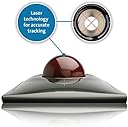
The Kensington Wired SlimBlade Trackball Mouse (K72327U) combines sleek, low-profile design with advanced laser tracking for precise cursor control. Its ambidextrous build and customizable buttons via free KensingtonWorks software deliver a personalized, ergonomic experience that reduces wrist strain and maximizes desk space. Featuring a unique twist-to-scroll function, this trackball is engineered for professionals seeking productivity and comfort in one stylish package.


| ASIN | B001MTE32Y |
| Additional Features | Movement detection technology:Trackball |
| Antenna Location | Office |
| Are Batteries Included | No |
| Are Batteries Required | No |
| Best Sellers Rank | #946 in Computer Mice |
| Brand | Kensington |
| Button Quantity | 4 |
| Color | Black |
| Compatible Devices | Windows 7, Windows 8, Windows 8.1, macOS 10.8, Windows 10, macOS X 10.11, macOS 10.10 or above, Chrome OS 44 or above, macOS 10.9, macOS Sierra 10.12 |
| Connectivity Technology | Wired |
| Customer Reviews | 4.3 out of 5 stars 2,064 Reviews |
| Enclosure Material | Silver |
| Global Trade Identification Number | 00085896723271, 05050914713317 |
| Hand Orientation | Ambidextrous |
| Hardware Platform | PC |
| Item Dimensions L x W | 6"L x 5"W |
| Item Weight | 11.2 ounces |
| Manufacturer | Kensington |
| Mfr Part Number | K72327US |
| Model Name | SlimBlade™ K72327EU Trackball |
| Model Number | K72327EU |
| Movement Detection | Trackball |
| Movement Detection Technology | Trackball |
| Number of Batteries | 1 AAA batteries required. |
| Number of Buttons | 4 |
| Operating System | Windows 8 |
| Range | 6.0 feet |
| Special Feature | Movement detection technology:Trackball |
| Style Name | Mouse |
| UPC | 809385660935 097009492066 100177260228 085896645887 763615904803 638458744988 640206607070 807030490470 031112194004 872182664895 800187705022 803982758279 029521830347 031112582351 662919001648 823019652431 804993501564 666667458037 809098923051 012304048473 102930735899 095009492062 085896723271 096009492069 724627170587 641438718763 809185809343 858967232718 640026224976 074437854154 8067920398… |
| Warranty Description | 2 year warranty (Only valid if purchased through Kensington Authorized Resellers) |
P**C
Makes you look forward to Mondays
Quick and easy setup. Just take it out of the box. Plug it in. Download Kensington Trackball Works and you're set. EARLY IMPRESSIONS: Coming from having owned the best of the best mice and trackballs from Logitech such as my current Marble Trackball, the M570 (which possibly contributed me the De Quervane syndrome I have now) and the Anywhere Mouse, not to mention scores of other mice and trackballs over the years include the 1990s version of the Kengington Expert Mouse -- I was, at most, expecting to marginally impressed by the Kensington Slimblade Trackball. But it took me only 15 minutes of acclimating and fine tuning the settings that I realized that this is a vast step up from my Marble Mouse. I'll have more to see in an updated review, but for now, here's few quick impression 5 star ratings, 5 being best: ***** Buttons: Excellent feel and "just right." In fact, were it not for the fact that some people mentioned the issue of having to press the buttons harder than they would expected, I never would have given this issue a second thought. The click pressure is about what I'd expect and has been a non-issue for me. I suspect that some people have this problem because the are pressing the keys to close to the hinge. But where my thumb and fingers naturally tend to fall are the areas that are farthest distance from hinges. ***** Scrolling: One of the best innovations since Xerox PARC invented the mouse. Honestly, even after all the glowing reviews in Amazon, I wasn't expecting it to be this natural, not to menion -- fun. Try it and you may never want to go back to a scroll wheel. ***** Ease of use and precision. Pointing and click is what you'd expect from a $99 trackball. Using a bigger ball than is the case on my Logitech Marble Mouse, does improve precision. This is especially the case because I am right handed, but need to use my left hand for this trackball. Many times when using my previous trackball, the Logitech Marble, I'd aim to put the mouse arrow on top of a small screen object (such as a line on my DropMind Mindmap) and found it difficult. So far, I'm finding myself about perform the same surgical actions more easily with the Kensington. ***** Smoothness of the ball. Initially, I found that would you do a rapid twist when scrolling, there's some kind of weird slight scraping vibration. The sound went away after a few days after natural oils from my fingers lubed the ball sufficiently. ***** TrackBallWorks Software. Works find and allows me to control all the buttons and chordings. So I was able to switch the traditional mouse click buttons to left-handed mode, use the top buttons for back and forward with browsing the Internet, refresh with bottom chord, and launch volume controls with upper chord. This is way more than what I could do with my Logitech Marble Mouse. **** Construction. ON THE PLUS SIDE, it's a beautiful, gleaming piece of modern art on my desk. ON THE NEGATIVE SIDE: The should have engineered the click buttons so that needed pressure to click is the same no matter were you click. While click-pressure has not been a problem for me in general, there are occasions where I click different areas of the button and it's unexpectedly harder than my finger expects. AS FOR THE BALL: My ball has dropped onto my hardwood floor about six times since I got this thing. Each time, I'm wondering if I dented or scratched it. I really wish they had fingered out a way to hold it in there. Conclusion: The days and weeks will tell. But for now, this is a candidate for being the best mouse/trackball input device I've ever used. UPDATE 9/18/2013 Well, I've come to the conclusion that this is the best mouse/trackball input device I've ever used. It beats all trackballs I've ever used. PLUS, it beats all mice I've ever used. That's a major shift because until this point, I've never had a trackball that has been as accurate, precise and easy to use as a good mouse. This Kensington Slimblade finally does it. It totally trounces Logitech and I've deleted all Logitech drivers from my main computer. I am amazed that it's not at or near the top of the charts. Well, for sure, in opinion, it deserves to be there. UPDATE 10/16/2013 Still going strong. No complaints. The one unfortunate thing is that many people might be scared off by the early reviews which reported problems with the the TrackBallWorks driver. That problem has long been fixed and it's been smooth sailing for me and many other users. If you're looking for the greatest trackball in the world and an alternative to the Logitech Marble Trackball (which I also own), this is worth a try.
P**R
Excellent ball
The ball is excellent. Moves smoothly, so does the cursor. It is great that it is so easy to remove. Kensington software does not recognise this mouse if it is plugged in to a monitor, connected to a KVM and then to a PC. The mouse is still usable in this case, but with a standard Microsoft mouse driver - without customisation. Microsoft driver allows to tweak cursor speed, click lock etc. Once the mouse is plugged in to a PC, then Kensington software recognises this mouse and full customisation becomes possible. The software is good. I needed to check Youtube for details of how to re-assign buttons. The buttons are usable. Scrolling by twisting mouse ball is convenient. Here is an idea for another version of this mouse: why not add a separate item, connected to this mouse with a (USB?) cable, which can be placed apart and used by the other hand? The main mouse - shaped similarly to this product - would house only a ball. The current design is spot on. The other item would house buttons: - left, right buttons - scroll wheel - a button to fix horizontal / vertical axis of ball movement - other customisable buttons - a trackpad - for a quick jump to any part of the screen Ideally these 2 items would be available for purchase both together and separately - in case one of them becomes faulty and needs to be replaced.
L**1
Better Than Expected
I could not find a suitable thumb trackball to replace a Logitech M570 that thought it knew better than I did when to double click or end a drag-drop operation, so I reluctantly settled on this. I'm pleased to say my reluctance was ill-founded: There's a lot to like about the Kensington SlimBlade. First, it feels like it has a *much* better build quality than the piece-o'-junk M570 that it replaced. Some might be annoyed by the buttons as they do need a firm push, but I prefer this to overly sensitive buttons that provide no tactile feedback. The base of this device has a good weight, so it doesn't slide around on the table. The trackball itself glides smoothly, and I like the fact that it can be easily removed from the base for cleaning. The base has a low profile, so it fits in my hand comfortably. I was skeptical regarding the 'twist' scrolling feature, but I'm pleasantly surprised by how easy it is (imagine turning a doorknob). I have found the scrolling can be a little 'herky-jerky' sometimes and that the scroll speed is not consistent across applications, but overall it does fine. For applications I use frequently I create a unique profile via the TrackballWorks configuration panel to fine-tune the scrolling, and for those I use infrequently I just live with it. I've also noticed that in games with small click spots the twist scrolling can be a challenge since even a little nudge on the x or y axis will move the pointer out of the click spot, but I'm not so much the gamer that this is an issue for me. I also thought highlighting text for dragging would be more work with this device, but I've programmed the upper-right button to initiate a drag, so there's no need to hold a button down while moving the trackball to highlight text. I've quickly grown to love this feature. I agree with others that the configuration software could be more flexible and offer more options, but I have found it sufficient for my day-to-day use and have had no trouble with it. I do like the fact that you can define operations triggered by pushing the top two or the bottom two buttons simultaneously, and I have utilized this feature in several applications. I also agree that this device is a little pricey, but have no objection to paying extra for quality and value. If the SlimBlade gives me no trouble and is still operational years from now then it's money well spent in my book. Though at this point I'd still prefer a high quality wireless thumb trackball with a scroll wheel, I do like the Kensington SlimBlade Trackball more than I was anticipating. I'd recommend it to anyone who prefers a trackball over a traditional mouse.
R**N
Best Trackball Ever.
I've been a trackball user for years and have used several different models. When my last one broke I began researching new models to purchase. I really liked the look of the Kensington Slimblade and from past experiences knew that I liked the feel of a bigger ball. I read a ton of reviews on the product and to paraphrase the majority of them, the hardware was amazing but the software was lacking. This gave me some concerns. However, I looked on the Kensington site and noted that the most recent release of the software was after the posted dates of the review. Kensington must have paid attention to the reviews, listened to their customers, and upgraded their software. After this I decided to make my purchase and I couldn't be more happy. The trackball is a bit pricey, but worth every penny in my opinion. Personally speaking, there are 3 criteria that make or break a trackball. The first is the amount of friction the ball has against its base. The second is the overall design in regards to comfort and hand movement. And third, is the driver software allowing you to customize your experience. The Slimblade's friction is perfect. My previous trackball, a Microsoft Trackball Explorer, had too much friction. The ball would stick when initiating movement from a still position. This was very aggravating when I required precise movements like working with a graphics program. The Slimblade never sticks. It glides smoothly and effortlessly all the time. The minimalist amount of pressure will coax the ball to move. The Slimblade's overall design is sure bliss. The comfort of using it epitomizes ergonomics and the hand movement is practically nothing. I can guide my cursor and click all of the buttons with my fingers without ever moving my wrist. Whenever I use it, I feel like I'm using some futuristic input device you only see in slick sci-fi movies. Lastly is the Slimblade's software. From most of the reviews I read prior to purchase, the initial software was severely lacking. However, I can tell you that is no longer the case. The options offered in the most recent software are cutting edge. While it has the expected options such as button customization, cursor speed, etc. It also has some features I've never seen in any input device. You can program the Alt, Control, or Shift to lock the cursor movement to a single axis allowing you to move precisely up and down or left and right. You can also program one of the aforementioned buttons to slow the cursor. So you can normally have the cursor movement very fast and then press a button to slow it temporarily. This is a wonderful piece of functionality when you require precise movements. The last option I'll mention, and it's my personal favorite, is the scrolling. You twist the trackball on its horizontal axis to scroll. See the videos on the product to get a visual of this feature. This feature is just flat out cool. There isn't a product in existence that has a more elegant way to scroll. Whoever came up with it at Kensington is a sheer genius. It even provides an oh so slight clicking feel to provide feedback to the user that the movement is a scrolling movement. In summary, this is the best trackball made. I've used trackballs for over 10 years, and while I personally believe they are superior to mice, all of the models I have ever used have had at least one flaw...until now. I've been searching for the perfect trackball and this is it. If mine ever breaks, I will immediately replace it with the same model. It is an absolute joy to use.
M**N
Absolutely fantastic mouse. 10/10
Absolutely fantastic mouse. 10/10. Here's why: - Great software support: trackballworks is a program downloaded from kensington's product page that lets you customize your mouse. Customization includes pointer speed, acceleration, scroll speed and acceleration, along with the ability to assign custom actions to 4 buttons + 2 combo buttons (top 2 buttons clicked at once + bottom two buttons clicked at once). Custom actions can be a keystroke, a mouse click, copy or paste, play or pause, etc. The software is great. - Well made hardware: Yes, everything is made in china these days. While Kensington's mice are no exception, the quality of the device stands out immediately. The ball scrolls freely in it's socket. I polished mine and got it spinning with even less friction. The smoothness of the ball is identical to the Kensington Expert mouse. - Scroll ball: To scroll, you simply rotate the ball. This is so brilliant compared to the Expert. Gone is the cheap plastic scroll wheel. You just rotate the ball. The software lets you set inertial scroll. Scrolling is, dare I say, fun. - Ergonomics: I spend my workday at a cube with three monitors of real estate. I love the ability to flick my thumb and arrive where I expect. It sounds minor, but after a single day of use the difference is noticeable: my wrist is less tired and my hand doesn't hurt. I'm not physically moving my arm as much, which you may or may not prefer. - The drawback: The drawback to this and every other track ball may be described this way: When you grab a traditional mouse and move it from point A to point B, your mind and hand register when you grab your mouse "Hey, I'm at point A" and the movement to point B is one that's loaded into your motor skills, courtesy of your brain piece. When you grab a trackball, the motion to point B will at first be less loaded in. You might lose your cursor. You might flick too far or not far enough. This is the learning curve of trackball mice. Your brain probably isn't quite as familiar with moving a cursor this way, since the link between arm motion and mouse motion is broken. Still, after a dedicated month or so of use, even beginners should feel more familiar with the device. - This mouse is not great for video games for the above reason. - I nonetheless recommend it to anyone looking for an all-day comfort kind of mouse. - year-in edit: still want to give this trackball 10/10; I'm bordering on trackball evangelist. All day comfort. Easy scrolling. My mouse has never been so good. I use three: an expert on a home laptop, a slimblade on a home pc, and a slimblade on my work mac. My experience is the same across all machines: flawless.
B**L
Potential, but not quite there depending on your setup
I decided to enter the realm of trackballs. This decision was not predicated by me suffering from RSI. Rather it was the thought of better managing my workspace. I'm currently running a 2016 MacBook Pro with a 5K and 4K monitor. All three are fired up when working. The monitors are all set to pretty close to the highest resolutions possible. So that accounts for a lot of real estate to move through! To counter this, I was using a Logitech G502 Proteus Gaming Mouse. The thing rocked for 2 main reasons: high quality scroll wheel and high DPI (1200). This allowed me to move relatively well across the monitors. However, when doing that, I needed alot of deskspace still to move around effectively. It dawned on me that if I got a trackball and could adjust to it, I could simpilify my desk even more. Having made this decision, I did some research and decided on trying the Clearly Superior CST2545(L-Trac), the Kensington SlimBlade, and the Logitech M57. I've listed all the reviews for the items in this review so it is easier to compare for those that are in the market. In the end, the CST2545 won out. And while it won, it is by no means perfect (it is a solid product). -------- Kensington SlimBlade - 3 Stars The Kensington SlimBlade is nice looking trackball. It comes thoughtfully packaged and even has a nice piece of tissue paper protecting the ball. Set up is super easy. Just plug it in and go. The first thing I noticed was the noise from the ball moving. Okay, maybe there is a bit of break in. Despite the noise, the movement of the ball is surprisingly smooth and has a nice weight to it. Twist scrolling? Seems pretty cool. Initial thoughts were positive. Buttons? Big and functional. Cursor movement? Slow. Not Logitech M570 anemic, but nevertheless slow. I knew that I would need to install their "customization package." to remedy this. Unlike the Logitech M570, the install process is a bit of a mess. First of all, you end up downloading a file named "a7d905eb-8a38-49e5-b25a-11d59a7e765f.dmg.dmg". Huh? Looks totally dodgy. After you install, the actual software looks like a 3rd grader put it together (sorry for the insult there kids, you probably could have done better). I adjusted the cursor speed. And even better, I could remap the buttons on the SlimBlade. Okay, now we're in business! Or so I thought. The sound of the trackball moving I originally mentioned? It still persisted. I posted a question about this and people indicated ths should not exist so I got a replacement. The second unit still exhibited this problem. I could actually overlook the noise (which was slowly diminishing each day). There were a couple of items which made this unusable for me. While I managed to get the cursor speed up so I could easily move around the screen, I found the cursor jumpy and inaccurate. I could not properly select text/insert cursor into text or manipulate pixels. I also started to find that the Twist Scroll I originally liked suddenly became my enemy. I'm a dev, so I do end up selecting text and then copying/cutting it around quite often. Depending on the editor I'm in, I'll use different techniques to do this. One way happens to be the select and then using the scroll wheel to scroll the text downwards. The unfortunate thing is this action usually results in also moving the trackball. So for me, it was ending up with sections of highlighted text that were incorrect. PROS: -Nice design -Trackball movement is smooth with a nice weight CONS: -Trackball is a bit slow in default settings -Trackball, when cursor speed is scaled up, has poor precision when moving when trying to do precise things -Twist Scroll while seemingly a great concept, can result in issues of trackball movement. So if you performing actions which "chain" on top of the scrolling, you may have issues -Customization software is terrible -Trackball is noisy. Noise will subside. When I returned it, it was still present, but I do believe it would have eventually diminished to the point of not being noticeable -------- Clearly Superior CST2545 - 4 Stars There are many products out there that believe in form over function. Then there are products that forgo any form of aesthetics and cater the needs around functionality. Enter the CST2545. This is not one of those items you are going to conspicously leave on your desk so when that hot date that stops by later she'll notice and say "OMG, is THAT the CST2545"? It's more likely to get a "Oh, you didn't mention that you live with your Dad." instead. There is really no walking around it. The CST2545 looks like a relic. When researching trackballs the CST2545 caught my eye because of higher CPI, people talking about build quality, and it being made in the USA. When I received it, it came in an unassuming box. It comes with a CD, which doesn't mean much if you're on a Mac, which I am. Hooking up is easy. It just works. Upon first usage, I noticed cursor movement was a bit slow. There are no drivers required for this device. The default setting is 800 cpi. What I wanted was 1600 dpi. To change the settings you hold the center button and then press the right button to change. The LEDs are off for 400, red for 800, and green for 1600. The LED is on the back of the device, so you need to turn it to see it, which I find a bit cumbersome. Once set to 1600, the thing worked like a champ. The issues I had had with the other trackballs I used was gone. I had the speed I needed and it was pretty precise when needed. Previously where I'd find the wrong text would get selected or other mishaps whilst using other trackballs, this one provided me with accurate selections and even pixel manipulations. However, I did notice one thing. The ball did not feel smooth and was loud. I ended up calling the company and was pleasantly surprised to find how helpful they were. They had indicated to me that they actually had an issue during production that could be the cause. They thought they pulled all the items with the part, but mine might have slipped through. They said they would replace it for me directly so they could be sure I got a model which was fine. Awesome! The unforunate thing here was that while it was a little bit better, the roughness/loudness is still there. There are times when I work where I need total silence to concentrate. During those times, I'll turn off all music and work. And this is when it's pretty evident how loud moving the trackball is. Keep in mind, that it may not bother everyone, but it does bother me. However, I don't always need to do this so the overall pros of the product beat out this by a long shot. One other thing that has been concerning me as of late is a mystery cracking noise it will make when initially using the trackball at times. I'm not quite sure what it is, but it sounds like maybe the roller moved out of place and then back? I'll probably eventually take it apart to see, but it does raise my brow a bit on build quality. PROS -Works really well for multi-monitor setups -Moves quick when needed and maintains precision when needed -Ball has a good weight to it for scrolling -Fantastic customer service -Nice scroll wheel. I have used better. If it was weighted, it would give it a bit better of a feel CONS -Not a visually pleasing form factor -Ball movement feels rough and is noisy -Have noticed some cracking at times which does make me wonder about longer term viability -Seeing LED setting for resolution is hidden. It would be helpful if you actually could see the status more easily -------- Logitech M570 Wireless Trackball - 2 Stars The M570 has a lot of advantages for it coming out of the box. It's shaped and roughly sized to be mouse-like, which makes adapting to it super easy. The buttons are where I would "naturally" expect them, and while the trackball on the thumb seems odd at first, I found it pretty quickly to adapt to. However, once you start using the device, you realize one glaring thing. This thing feels cheap. It feels like an item that would need replacing in a few short years. Next, I found that moving my mouse on screen was rather anemic. Part of this no doubt has to do with my setup. The combination of the small diameter of the ball plus the amount of distance led to one unpleasant experience. To move across the screen, I'd have to spin the trackball with my thumb like a mad man. While I generally don't like to install the driver/customization software if needed, I knew I'd need to do so in order to make this work well. Installing the SW was a snap and I quickly found the settings to adjust the speed settings. I found a setting that seemed to work well and went back to doing things on my computer. What I found was that although the speed of moving the cursor was indeed zippy, it jumpy and inaccurate. This became especially apparent when I needed to some items which required more precision like clicking to insert the cursor into text or wanting to manipulate some pixels. I believe the issue stems from the speed adjustment really being just a scale factor. If they are slick, they have also tried to account for time and acceleration as well to try and better predict when you want speed versus precision. One would believe they are, since they do have a setting for "pointer acceleration". But perhaps the aren't doing anything in regards to better managing when you need more "precision". In the end, I found the Logitech M570 unusable for my case. To be able to manage scrolling around with different monitors required me to jack up the speed settings but as a consequence I would loose precision of movement when needed. If I took the opposite approach and lowered the speed setting, I would be too frustrated by the experience of moving the cursor around. PROS -Nice and compact form factor -Familiar form factor to those coming over from a mouse -While thumb control for trackball may seem odd, it is surprisingly easy to get the hang of -Software easy to install and "looks professional" CONS -Cheap build quality -Trackball is slow with default settings -Trackball, when pointer speed is adjusted upwards, has poor precision when trying to do precise things NOTE: I realize some people will indicate that I should not be able to manipulate pixels with a trackball. I realize that. I have the tools to do that. This is for some quicky stuff I need to do where a trackball should be more than suffice to manage.
C**.
Better than the Expert Mouse
Big trackballs are an uncommon peripheral. Though, in my case, once I'd tried one many years ago (back when floppy disks were still a common media format), and it always seemed superior to a normal mouse. I could move from the far end of one display to the far edge of another with just a flick of the finger instead of moving my hand. I had a Kensington Expert Mouse for many years prior to getting the Slimblade. Adjusting to the Slimblade shouldn't be too different coming from a Expert Mouse, but it's definitely a little bit of a learning curve if you come from mousing. The biggest difference is using your mouse "clicking" finger to do your pointing nearly exclusively, while using your thumb to left-click. However with practice you'll be rewarded to a far more precise pointing experience. Then, scrolling by just rotating the ball can be a little bit to get your head around, however in practice it works nearly identically to the scroll ring on the Expert Mouse. Just drag your finger along the surface of the ball against the silver ring, and you can scroll easily. Why do I say the Slimblade is better than the Expert? I'd say the ergonomics are a wash, but the Slimblade has a lower profile and is definitely sleeker looking. It helps to pair with a low-profile wristrest, not unlike the one Kensington makes. But the switches seem to be holding up better over the years of use, and there's less to break than on the Expert with the deletion of the individual buttons and scroll ring. It's super easy to keep the bearings and wheel clean, and just blow out any dust accumulation inside, though you have to do this somewhat regularly to keep the ball tracking correctly. This would be the only downside I could think of after getting over the learning curve. Keep it clean and you'll be rewarded with years of good service. If you want to take advantage of the two top buttons and the macro functionality allowing for chording buttons as well, then you'll have to use the KensingtonWorks software, which is unobtrusive and doesn't consume much resources these days. There are a few things missing from the software I think, such as mapping for a scroll-click which many games use for triggers or other functionality. Overall, I wish there were more large trackballs like these on the market, but Kensington is really the only game in town for these. That said, if you make it work for you, I doubt you can find better.
D**.
The King of Balls, Trackballs
The Kennsington Slimblade Trackball is awesome. I could end the review right there but that would be lame. So, I would like to add that a big part of one's acceptance of a new device is based largely upon their prior pointing/mousing device and what you are used to. If one is coming from a mouse, let's say - then switching to using a trackball might seem strange. If, like myself, you're already a proficient trackball user, the conversion to a new trackball device is less so. But it is always a bit strange to switch regardless of your prior experience. This is because we use our pointers without having to think about it. And if we have to think about it, there's an added mental/cognitive load to process. Basic tasks become minor adventures, which can be a nuisance. I suspect many bail on this premise alone. While clicking and dragging was a bit of a shift for me - surprisingly I had an immediate acceptance of the scrolling - which is done by twisting the ball. I cannot adequately tell you how satisfying and well implemented this feature is with the Slimblade Trackball. Love it. Previously with my MicroSoft Trackball Explorer (my previous device) this was accomplished with a typical "scroll wheel." The Slimblade slices and dices that option to bits. So...clicking and dragging, while fine and intuitive - was different. So it took a day to get used to. I had a bit of regret and missed my familiar device - but when I switch back to it - I found that "old familiar device" to be rough, brutal and no longer what I wanted. So I went back to my new Slimblade. And by the next day I was hooked. Ergonomically, this device is far superior to my MS Trackball Explorer - which was very nice ergonomically speaking. But...as a rule of ergonomics, repetitive actions are bad - so any device, no matter how well it is ergonomically designed can get old after 10 years. Did I not mention I was using the Trackball Explorer for 10 years? Well I was. I loved it and never wanted another device. But my hand was beginning to hurt. 10 years of use is incredible, mind you - a real testament to that MS TB Explorer! But when I switched back to the MS TB Explorer - the grip required to click, hold and drag was where the pain was coming from. It required too much grip and effort on one area of my hand. Also the ball was tough to move. When I went back to the Slimblade, the ball was like silk! And...sure enough, I began to get used to the click, hold and drag procedure and movement. It was much better on the Slimblade and required less effort. This ball can roll too! It requires less "pushing" and is so much more nuanced and precise. Plus, with the ball being so big, you can put any part of your entire hand into the movements and change how you want operate it - which is key for great ergonomoics. What I really started to love about it was the BIG click buttons. Oh yeah, they're massive. And I found myself able flick my wrist and have my thumb "whack" the large left-click button - or my pinky smash the right-click. Nice. This shifted the effort to my entire hand and wrist - which was far more humanly natural and fluid than the restrictive, isolated and delicate finger "pulses" that put all the work on one tiny, overstressed hand muscle - all day long. Do get the latest driver/software from Kensington's site. It works great on Windows 7 and XP. I have the top buttons programmed as the back and forward on the web browser that I use all the time. It also lets you program clicking two buttons at the same time to do whatever you want. I have the bottom two set to show the desktop. I love just smashing down on the buttons like the monkey that I am, rather than using tiny, surgical clicks. Big buttons, big ball - much better. The real gist of my review is how fast I took to it. One day. By the next day I was packing up my beloved Trackball Explorer and buying a second Slimblade for home. The second point is to stand up for a fantastic device that doesn't seem to be getting a lot of love and respect from other reviews here. Many seem to be coming from Kensington's other well-respected trackball: the Expert Mouse. Now, I never used that one...so I can't relate, but it clearly is much loved and was the basis for the design of the company's latest - the Slimblade. But I want again stress that switching devices is tough. Give it time. Hang in there. Lastly, this thing is gorgeous.
L**S
Fantástico!!!
Mouse Fantástico! Já tinha um, só que a versão Pró, Sem Fio, e esta versão é exatamente igual mas com fio!!!
J**N
Nicht billig, aber preiswert!
Nach weit über zehn Jahren habe ich mich jetzt schweren Herzens von meiner Logitech Marble Mouse verabschiedet. Ich habe täglich durchnittlich ca. acht Stunden damit gearbeitet und kann damit wohl als eingefleischter Trackball-User gelten. Über die Gründe für den Wechsel können Sie in meiner Rezension über die Marble Mouse lesen. Nun also SlimBlade. Schon beim Auspacken merkt man, dass man hier einen echten Brocken vor sich hat - und zwar im positiven Sinn. Das Gerät liegt breit und schwer, aber dennoch sehr flach auf dem Tisch. Es ist nicht leicht zu verschieben. Der Ball ist groß und massiv, dabei aber spielerisch leicht zu bedienen. Da ich große Hände habe, komme ich an alle vier Tasten problemlos heran. Die Rückmeldung beim Klicken ist genau richtig, das Geräusch dabei noch etwas gewöhnungsbedürftig (irgendwie "billig"). Die aufzuwendende Kraft beim Betätigen der Tasten liegt so, dass man sie nicht aus Versehen drücken kann, aber auch nicht zu kräftig drücken muss - also gut ausgewogen. Und dann natürlich das Highlight beim SlimBlade: Die Scroll-Funktion. Ich kam auf Anhieb mit ihr zurecht und habe mich tatsächlich gefragt, warum noch niemand anderes auf diese einfache aber geniale Idee gekommen ist. Der Ball muss lediglich um seine senkrechte Achse gedreht werden. Dabei hört man ein leises Klicken aus dem Trackball, das vermutlich mit einem kleinen Piezo-Element erzeugt wird. Die Technik beim Drehen muss dann jeder für sich herausfinden. Man kann mit einem Finger entlang des Ringes fahren; das funktioniert sehr gut und verschiebt auch den Cursor kaum. Man kann die Drehachse mit dem Zeigefinger fixieren und dann mit dem Mittelfinger drehen; das funktioniert auch recht gut, verschiebt aber den Cursor leicher. Letzte Möglichkeit: Man greift den Ball mit drei Fingern wie einen Drehknopf; dazu muss man aber die gesamte Handposition verändern. Da ich ihn gerade erst neu bekommen habe, arbeite ich mich in diese Techniken noch ein, benutze aber überwiegend Methode 2. Das gesamte Arbeiten geht damit wunderbar von der Hand - ich musste mich aber auch nicht sehr umstellen, da ich Trackbälle gewohnt bin. Die Taste links oben macht bei mir den Doppelklick, die rechts oben setzt den Browser eine Seite zurück, beide zusammen machen den Mittelklick, und die beiden unteren Tasten öffnen gemeinsam ein Explorer-Fenster. So geht produktives Arbeiten! Wunderbar bedienbar ist auch die Software "TrackballWorks", die aus diesem Trackball erst das perfekte Gerät macht, das ich gesucht hatte. Damit sind drei der vier Tasten frei belegbar, und zusätzlich auch noch zwei Kombinationen. Ich habe also sechs verschieden Funktionen, von denen ich fünf frei zuweisen kann. Zusätzlich gibt es noch Funktionen wie "langsamer Zeiger" für besonders genaues Positionieren (frei wählbare Zusatztaste auf der Tastatur, z.B. Strg, Alt oder Shift), oder "einachsige Bewegung", die den Cursor nur in X- oder Y-Richtung laufen lässt. Auch die Scrollrichtung des Balls lässt sich umkehren (vermutlich für Linkshänder). Erwähnte ich schon, dass das Teil auch noch richtig klasse aussieht? Für mich ist der SlimBlade der bis jetzt beste Trackball, den ich jemals hatte (und ich hatte einige). In Sachen Design, Ergonomie und Funktionalität macht ihm so schnell keiner etwas vor. Deshalb gibt es von mir, trotz des wahrhaft schmerzhaften Preises, fünf Sterne und eine klare Kaufempfehlung. NACHTRAG nach zwei jahren Benutzung: Mittlerweile haben sich leider die Gummifüße völlig zu einer matschigen Substanz aus ekligem Kleber und wabbeligem Gummi gewandelt. Ich habe alles entfernt und flächig ein Stück Antidröhnmatte auf die Unterseite geklebt. Jetzt funktioniert wieder alles, wie es soll und der Schreibtisch bleibt auch sauber. Auf meine 5-Sterne-Bewertung hat das keinen Einfluss – die bleibt uneingeschränkt bestehen. NACHTRAG nach fünf Jahren Benutzung: Ich bin immer noch begeistert von dem Trackball. Er funktioniert tadellos und hat sich auch optisch nicht verschlechtert. Die Antidröhnmatte hat sich bewährt. NACHTRAG nach zehn Jahren: Der Trackball funktioniert noch immer einwandfrei wie am ersten Tag – bei täglicher mehrstündiger Nutzung. Das nenne ich preis-wert.
V**O
Muy funcional
Llegó muy bien protegido, se sienten de buena calidad los materiales y poder configurar los botones hace muy práctico trabajar con el, lo recomiendo mucho
B**N
FInalement le modèle deux fois moins cher est le meilleur !
La particularité de mon commentaire tient au fait que j'ai testé deux des modèles proposés ici : d'abord la Kensington Orbit avec molette (modèle bleu à +/- 45 euros) et la Kensington Slimblade (modèle gris à +/- 95 euros, soit plus du double). J'avais acheté la première le 12 juin 2014 (soit il y a 5 ans) et la dernière il y a quelques jours suite à la mort de l'Orbit il y a un ou deux mois, toutes sur Amazon. La question qui vous taraude est la suivante : quelle est la meilleure ? Eh bien je vais vous laisser un peu mariner en commençant par parler de trackball en général. Au départ, j'avais acheté l'Orbit simplement par goût des gadgets (tout en me persuadant de la rationalité de mon achats avec les arguments habituels) et léger anticonformisme un peu superficiel, je ne vais donc pas vous faire tout un baratin sur l'intérêt médical, blabla. je ne m'en suis jamais soucié et j'allais très bien avec une souris. J'avais peut-être eu un problème sur une souris à cette époque mais je ne m'en souviens plus (ce que je sais c'est qu'une souris gamer à 90 euros que j'avais achetée était morte en 2 semaines mais c'était bien avant je crois). Malgré la légèreté de mon achat, je me suis finalement laissé surprendre puisque je n'utilise plus de souris au travail (soit la quasi totalité de mon temps d'ordinateur) alors que je pensais garder ce que je voyais comme un gadget pour de rares sessions. Pourquoi ? Parce que ce qui se dit sur les trackballs est vrai : ça change la vie. Déjà, la boule est rapide et précise, plus besoin de balayer une grande surface ou de mettre son pointeur à une vitesse trop élevée pour balayer l'écran à fond. Bouger est d'ailleurs un plaisir et pour moi qui aime toujours jouer avec des objets avec mes mains, je peux m'amuser à sortir la boule ou à la faire rouler. Mais au delà du pointeur, je dirais que le point positif majeur de ces trackballs, c'est le défilement tout simplement ultra rapide et reposant (surtout sur la Orbit). Sur ce point, la trackball change la vie. En sus, je n'ai eu quasiment aucun temps d'adaptation (ce qui n'est pas le cas de tout le monde d'ailleurs, certains sont en souffrance dessus), en fait bouger la boule n'est pas spécialement contre-intuitif mais cela dépend sans doute des personnes. En résumé : je pense que l'expérience trackball est supérieure à celle de la souris mais je ne dirais pas non plus que c'est un achat nécessaire. Passer à la souris ne m'embête pas plus que ça, selon moi les deux mondes se valent surtout poru de la bureautique standard. Le plaisir est plus dans la modalité et la différence, à moins que vous ayez des problèmes particuliers, une mauvaise surface ou peu d'espace. Passons maintenant aux deux modèles en particulier, et à celle que je préfère. Eh bien, au risque de vous surprendre et ça me fait mal de l'admettre mais je préfère le modèle Orbit qui est plus de deux fois moins cher. Pourquoi ? Comme vous le voyez sur les photos, ce modèle se manipule enveloppé comme sur une souris classique. Ayant des mains de taille 7-7,5, cette prise avec la boule medium est moins fatigante que celle sur la Slimblade qui est inclinée. De plus, la bague de défilement est juste parfaite sur l'Orbit bien qu'un peu cheap à voir. En fait, la Slimblade a selon moi quelques défauts potentiellement graves : - la disposition des touches fait que je clique souvent accidentellement à gauche. De moins en moins mais quand même. Sur l'Orbit, les touches tombent parfaitement devant les doigts vu qu'il y en a deux comme sur une souris. De plus, le défilement de la Slimblade demande de davantage bouger ses doigts alors que sur l'Orbit je pouvais défiler avec le petit doigt. Du coup, j'ai un peu mal au poignet en fin de journée...dommage vu que c'était justement ce que la trackball est censé éviter. EN résumé, je travaillais beaucoup plus vite avec l'Orbit je trouve et elle se fondait vraiment dans ma main, peut-être que ça viendra avec la SLimblade ? Si non, je rachèterai une Orbit. A la lecture de tout ceci, vous allez me demander : "mais pourquoi ne pas avoir racheté une Orbit si elle était si bien ?". D'une part, j'avoue avoir voulu tester le modèle premium par curiosité et par envie de changement. D'autre part, plus pragmatiquement, il ne faut pas oublier que mon Orbit s'est cassée. En effet, le clic droit est usé et double clique souvent alors que je clique une fois voire ne répond pas. Il y a un ou deux ans, j'avais réglé le problème en la démontant et en nettoyant un peu, cette fois ça n'a pas marché. Et c'était à prévoir sachant que l'Orbit est aussi efficace qu'elle n'est "cheap". En effet, le corps de cette trackball fait creux et les touches sont des bouts de plastique vides lévitant en l'air, reposant sur les vrais interrupteurs via une fine couche de plastique. Du coup, la souris craque un peu tout comme la molette a le feeling de faible qualité (même si il tourne bien quand même). AInsi, même si 5 ans d'utilisation 7 à 8 heures par jours 5j/7 est un bilan honorable, j'avoue que je culpabilise toujours un peu de jeter des produits. Ce n'est pas une histoire d'argent, ça m'aurait coûté moins cher d'acheter une seconde Orbit mais de principe. Du coup, j'espère que la Slimblade tiendra davantage. En résumé, je mets tout de même 5 à ces deux trackballs qui font le job malgré de menus défauts. La durabilité de l'Orbit reste correcte vu l'utilisation et le prix même si en vrai je mettrais plutôt 4,5/5. En tous cas, si je devais vous conseiller un modèle par défaut, ce serait celui là, la différence de prix de la Slimblade n'ayant pas de vraie justification pratique à mon sens à moins que vous ayez vraiment besoin de quatre boutons (difficiles à utiliser en sus si vous avez des petites mains comme moi) et d'une plus grosse boule. Quant à la trackball en général, elle est à réserver aux curieux à moins que vous en ayez une utilisation spécifique ou peu d'espace. En effet, bien que présentant des avantages par rapport à la souris, elle ne la dépasse pas à mon avis. Ce sont deux approches différentes qui se valent, le choix de l'une oud e l'autre m'est indifférent en pratique. EDIT : après m'être habitué, je n'ai finalement plus de problèmes sur la Slimblade. Cependant, elle est légèrement plsu fatigante bien que plus précise et plus fluide. Si vous visez uniquement les fonctionnalités de base, l'Orbit est un bon choix mais si vous voulez juste un plus bel objet, la Slimblade est mieux. Disons que ça ne vaut peut-être pas deux fois le prix.
A**A
Life changing
I was suffering from carpel-tunnel syndrome, my right hand was hurting so bad after using the apple mouse for 3 years I have long editing sessions and now my hand problem is completely gone Though it will be very hard to get used to this for sometime , you might want to through it away , it might feel like learning to operate computer from scratch but give it a 1 week time … Don’t rush your decision and later you will find that it was a great choice … just bare with it for 7-10 days and keep using it
Trustpilot
3 weeks ago
1 month ago